
DetailOAR Field Manual · Lead pipeline
Configure the Lead Pipeline and Lead Sources
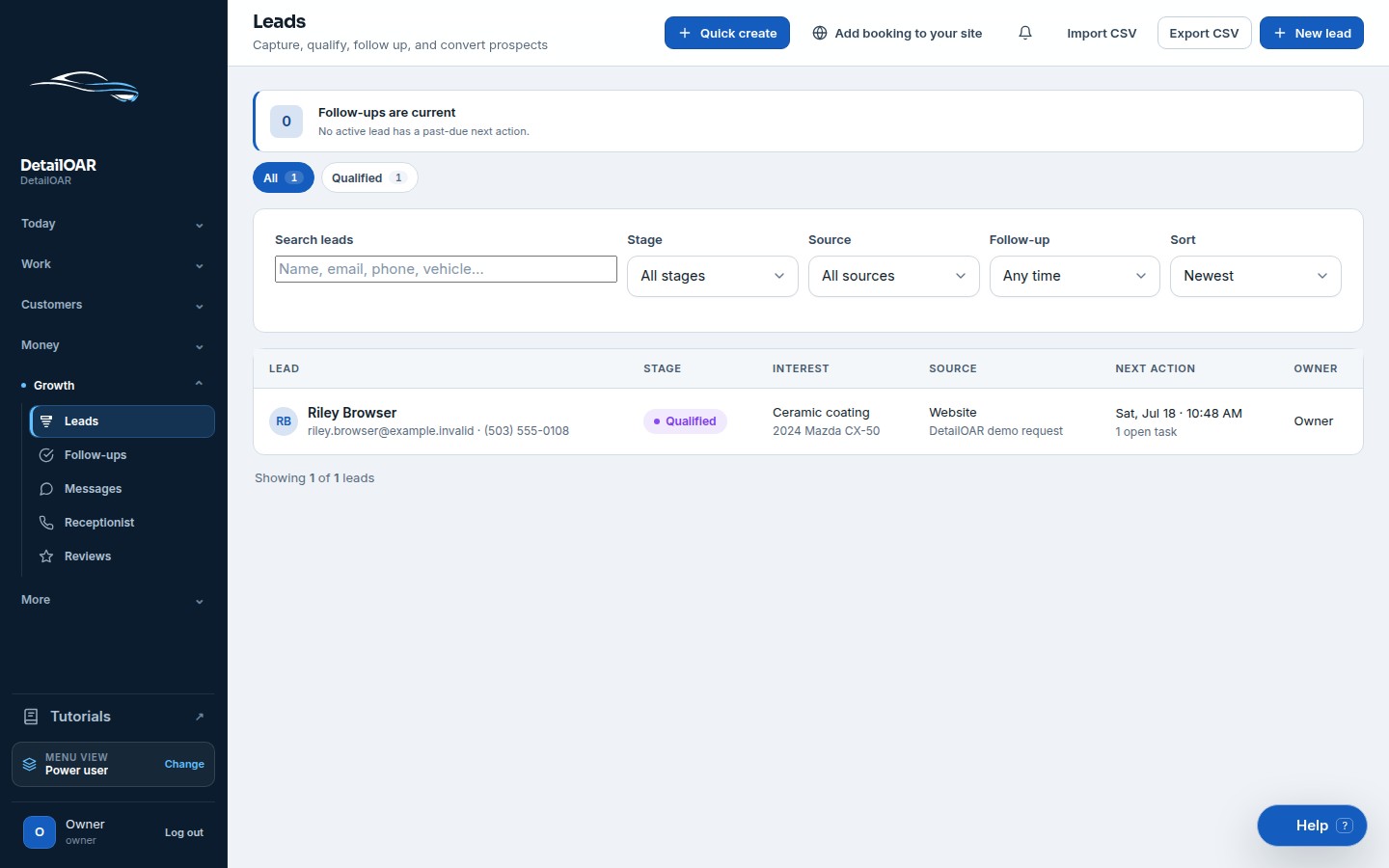
Set up lead stages and sources, capture consent and next actions, weed out duplicate inquiries, and test converting a lead into a customer, vehicle, estimate, and job.
Save or use this guide
 View full size
Contents
Start
Know the outcome.
What you will accomplish
You’ll build a small stage model your team can apply the same way every time, name the sources that matter, set owners and follow-up dates, and convert a qualified lead without losing the original inquiry history.
Steps
Do the work in order.
-
Step 1 Configure lead sources
Open Leads and choose Pipeline settings.
Create a short source list, something like Website, Google Business Profile, Phone, Text, Instagram, Referral, Partner, Repeat customer, and Walk-in.
Keep source and campaign separate. Source needs to stay stable for reporting; campaigns can change as often as they like.
Deactivate duplicate or stale sources only after you’ve mapped any open leads.
-
Step 2 Capture a lead correctly
Choose New lead.
Enter the name plus at least one contact method you’ve validated. Add vehicle year/make/model when you know it — don’t guess.
Choose Source, Stage New, a responsible owner, and a Follow-up date/time.
Write what the person actually asked for in Notes, and capture email/SMS consent using the truthful source and text.
Save, then search by email and phone to confirm duplicate detection didn’t turn up an existing customer or open lead.
-
Step 3 Convert without losing context
Open a qualified lead and choose Convert.
 View full size
Check whether the customer already exists. Link the existing record when it’s the same person — don’t create a second profile for convenience.
Create or link the vehicle.
Choose Create estimate or Create job only once scope and scheduling expectations actually fit.
Confirm the lead moves to Won and the new customer/vehicle/estimate links show up in its history.
Reference
Use the detail when you need it.
Define stage meanings
- New: captured, but nobody’s personally answered yet.
- Contacted: a real reply went out or a conversation started.
- Qualified: you understand the vehicle, the outcome they want, timing, service area, and basic fit.
- Estimate sent: a priced scope is out waiting on a decision.
- Won: converted into the customer/job workflow.
- Lost: not moving ahead — record a respectful reason and the future-consent state.
Understand the optional startup limit
When the configurable Startup plan is on, the platform counts new lead records in the current billing period and stops the sixth creation with an upgrade/export explanation. It must not hide or delete the first five leads, existing customers, jobs, or historical records.
What good looks like
- Every open lead has an owner and a next action.
- Sources are few enough to use consistently.
- Consent state is visible before marketing messages.
- Conversion links customer and vehicle records instead of duplicating them.
- Won/lost reasons hold up in honest reporting.
Troubleshooting
- Lead shows up twice: search the exact email/phone and merge only through the supported duplicate workflow.
- No source performance: make Source required in team procedure instead of burying the detail in free-text notes.
- Sixth lead blocked: look at the plan status and billing period — owners can upgrade or export, not bypass enforcement.
- Converted record missing: read the lead history and audit event before recreating anything.
Finish
Check the result and close the loop.
Final checklist
- Stage definitions documented.
- Sources created and deduplicated.
- Owner and follow-up required in procedure.
- Consent capture tested.
- Duplicate and conversion flows tested.
- Startup limit tested if enabled.
More
Continue only where it helps.
Learning paths with this guide
Set Up DetailOAR8 guidesFrequently asked questions
Is every existing customer inquiry a new lead?
Record the opportunity, but link it to the existing customer so lifetime history stays connected.
Should campaign names be lead sources?
Usually not. Keep the stable source, and park short-lived promotions in a separate campaign field or note.
What happens at the startup lead limit?
New lead creation gets blocked with a clear plan action; existing records stay available.
Sources and review
Reviewed by DetailOAR Product Team on July 15, 2026. Verify current labels, interfaces, prices, and local requirements before acting.
Related field guides
 Marketing and SalesLead Response Scripts for Calls, Text Messages, and Direct MessagesAnswer every channel fast with scripts that qualify politely, lock in the next step, and record consent, without ever sounding like a robot.
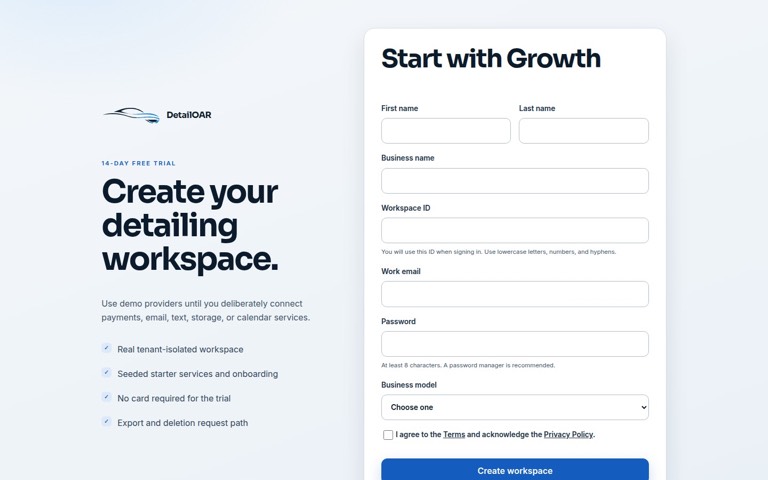 Software helpCreate Your Account and Business WorkspaceSpin up a tenant-isolated workspace, pick the right plan and business model, sign in, and confirm the owner session before any customer data goes in.
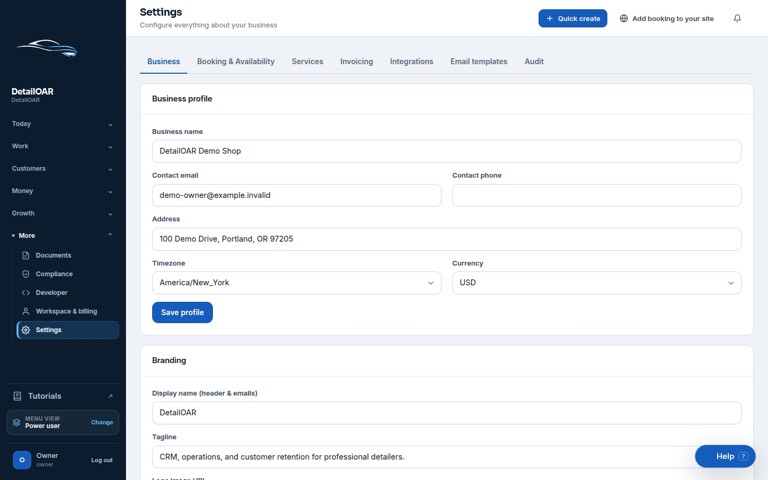 Software helpAdd Your Logo, Contact Details, Hours, and Service AreaFill in the public business profile and branding, then set weekly availability, exceptions, arrival rules, and your mobile service boundaries.