
DetailOAR Field Manual · Recurring maintenance
Create Recurring Maintenance Plans
Build a clear recurring service template, enroll the right customer and vehicle, test due-cycle generation, and handle pause, resume, or cancellation cleanly.
Save or use this guide
 View full size
Contents
Start
Know the outcome.
Steps
Do the work in order.
-
Step 1 Create the plan template
Open Recurring.
In Plans choose the dashed Add plan card.
Enter Name and a plain Description of what’s included and what isn’t.
Choose Interval, Interval count, Price, Included service, Auto-schedule, and Auto-invoice.
Choose Save. The plan shows up under Plans, but it has no customer until someone enrolls.
-
Step 2 Enroll a customer and vehicle
Beside the plan choose Enroll customer.
 View full size
Search for and select the existing customer. Check email, phone, and history so you don’t enroll a duplicate.
Select the exact vehicle — recurring cycles shouldn’t float between a customer’s vehicles.
Review start date, next run date, price snapshot, service, and notes.
Get the required customer agreement/consent on record, then choose Enroll.
Confirm the subscription appears under Subscriptions with status Active.
-
Step 3 Test cycle generation
Work with a seeded test plan and a due date in the controlled test environment.
Choose Generate due visits once.
Confirm one appointment and one draft invoice appear, with the correct customer, vehicle, service, amount, and source subscription.
Run Generate due visits again. No duplicate cycle should show up for the same due date.
Read the draft before sending — auto-invoice creates a record, not permission to spring an incorrect charge on a customer.
-
Step 4 Pause, resume, and cancel
Use Pause when service should stop for a while without ending the relationship, and check no due cycles generate while paused.
Use Resume only once you’ve confirmed the next run date.
Use Cancel for the final end state, and record the customer’s effective date and reason per policy.
Reconcile any provider subscription separately — internal and provider states have to agree before the next billing cycle.
Reference
Use the detail when you need it.
Define the plan before entering it
- The specific included service and vehicle.
- Interval and count, such as every 1 month or every 3 months.
- Price, tax treatment, and whether the price is per cycle or per subscription period.
- Auto-schedule and auto-invoice behavior.
- Customer notice, reschedule, pause, cancellation, failed payment, and skipped-cycle rules.
What good looks like
- Plan scope and price make sense at a glance.
- Enrollment ties to one customer and vehicle.
- Cycle generation is idempotent.
- Drafts get reviewed before delivery.
- Pause/cancel state stops future work and provider billing as intended.
Troubleshooting
- No cycle generated: check the status, next run date, included service, and auto flags.
- Duplicate cycle: stop manual sends and read the subscription/due-date idempotency record before deleting anything.
- Wrong vehicle: cancel the draft cycle and fix the enrollment through the supported path.
- Provider still bills after cancel: check the Stripe/provider state and webhook log — don’t assume internal status canceled the external subscription.
Finish
Check the result and close the loop.
Final checklist
- Plan terms written and reviewed.
- Customer/vehicle enrollment verified.
- Agreement/consent recorded.
- Due generation tested twice.
- Pause/resume/cancel tested.
- Provider and internal status reconcile.
More
Continue only where it helps.
Prerequisites
Create Services, Packages, Add-Ons, and Vehicle-Size Pricing12 min readConnect Payments and Send Your First Invoice12 min readLearning paths with this guide
Set Up DetailOAR8 guidesFrequently asked questions
Does auto-invoice automatically send the invoice?
The current workflow creates a draft for you to review, unless a separately configured provider subscription handles billing.
Can one customer enroll two vehicles?
Yes. Give each vehicle its own enrollment so scope, history, and cycles stay clear.
What happens when a plan is edited?
Existing enrollments keep a terms snapshot — check whether a customer has to agree to any changed terms.
Sources and review
Reviewed by DetailOAR Product Team on July 15, 2026. Verify current labels, interfaces, prices, and local requirements before acting.
Related field guides
 Marketing and SalesHow to Create Repeat Customers, Maintenance Plans, and Reactivation CampaignsBuild follow-up, rebooking, recurring maintenance, and respectful win-back campaigns around what the vehicle needs and what the customer agreed to.
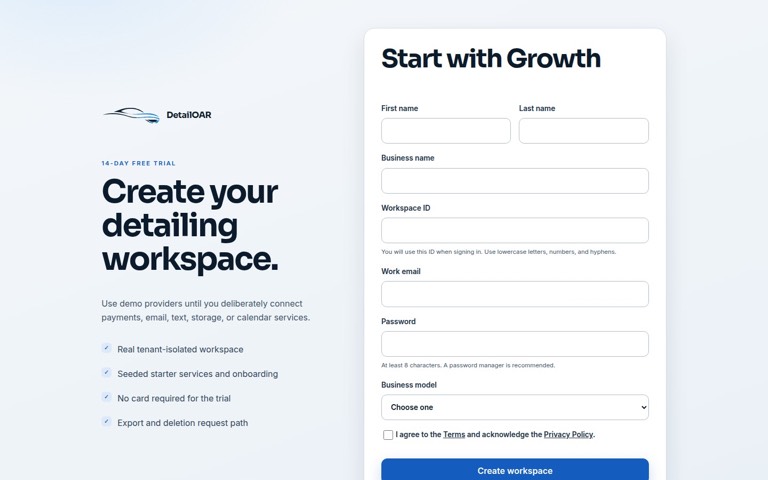 Software helpCreate Your Account and Business WorkspaceSpin up a tenant-isolated workspace, pick the right plan and business model, sign in, and confirm the owner session before any customer data goes in.
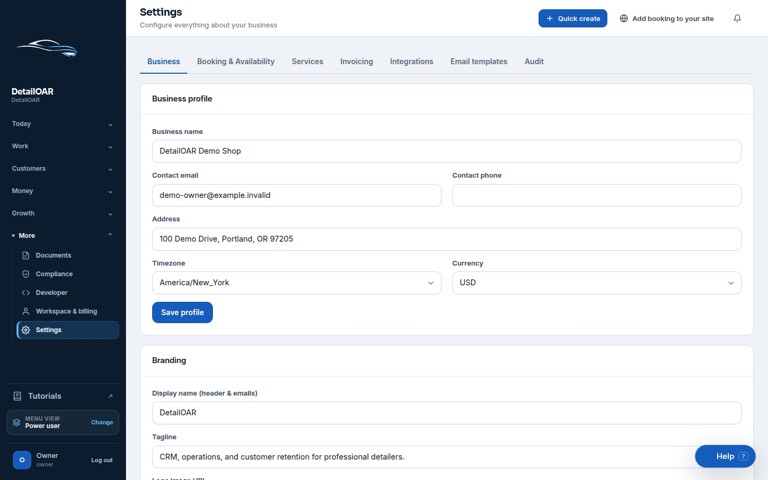 Software helpAdd Your Logo, Contact Details, Hours, and Service AreaFill in the public business profile and branding, then set weekly availability, exceptions, arrival rules, and your mobile service boundaries.