
DetailOAR Field Manual · Customer import
Import Existing Customers and Vehicle Records
Prep, preview, dedupe, import, verify, and export customer and vehicle data — without any of it landing in the wrong workspace.
Save or use this guide
 View full size
Contents
Start
Know the outcome.
What you will accomplish
You’ll import customer contact fields with one associated vehicle per row, review every match decision before anything is written, and confirm source IDs, consent, notes, and profile details didn’t get silently overwritten.
Steps
Do the work in order.
-
Step 1 Prepare the CSV safely
Export customers from the old system as CSV, and keep that untouched export outside the application as your backup.
Open Customers, choose Import customers, then grab the template to see which headers are supported.
Make one row per customer-vehicle combination. Repeating a customer with a different vehicle is fine as long as email, phone, or source ID stays consistent.
Clean up emails, phone numbers, years, make/model names, plate, VIN, and size class. Don’t invent missing VINs, consent, or service history.
Strip out full card numbers, passwords, access tokens, private payment notes, and files. None of that belongs in a CSV import.
-
Step 2 Preview before writing
Choose the source format if the app recognizes it, or choose Generic and map each input column yourself.
Upload the CSV. The preview should show create, fill blank, link, skip, or review decisions without touching the database.
 View full size
Sort out rows marked ambiguous. Lean on source identity, email, or a verified phone — never guess between two similar names.
Download the error CSV when it’s offered, fix only the rows it names, and preview the corrected file again.
Glance at the workspace name in the top bar before selecting Import customers.
-
Step 3 Verify the result
After Customer import complete, jot down the created, updated, linked, skipped, and review counts.
Search three customers by name, phone, and email. Open each one and check the vehicle fields.
Search at least one vehicle by plate or VIN.
Choose Export CSV and compare a sample against your source backup.
File the import summary and error CSV with the migration record, and delete local working copies once you no longer need them.
Reference
Use the detail when you need it.
How duplicate protection works
The importer works from tenant-scoped source IDs and conservative contact matching. It fills blanks when that’s safe, but it won’t overwrite populated profile details just because a later file disagrees. Ambiguous or phone-only matches get flagged for review, because a bad merge is much harder to undo than a skipped row.
Common mistakes
- Importing straight into production with no preview and no backup.
- Mapping a notes column to consent, or a generic ID with no source namespace.
- Assuming two family members sharing one phone are the same customer.
- Letting a formula or malformed row slip in and shift later columns.
- Re-running the corrected file under a different source name and minting avoidable duplicates.
Troubleshooting
- File rejected as too large: split it into stable batches and keep the same source namespace.
- Wrong number of columns: repair the exact row the error names — don’t just delete the header and hope.
- Vehicle missing: check the row carries customer identity plus year/make/model or another supported vehicle field.
- Possible duplicate: export the customer list, look at both records, and merge only through a supported, reviewed path.
Finish
Check the result and close the loop.
Final checklist
- Untouched source backup saved.
- Preview decisions reviewed.
- Errors fixed before import.
- Sample customers and vehicles searchable.
- Post-import export reconciled.
- Working files handled per the business privacy policy.
More
Continue only where it helps.
Learning paths with this guide
Set Up DetailOAR8 guidesFrequently asked questions
Will a later import overwrite customer notes?
The safe fill policy fills blanks rather than overwriting populated profile fields — still, review the preview for every update.
Can one customer have several vehicles?
Yes. Repeat the tenant-scoped customer identity with a different vehicle on each row.
Should payment cards be included?
No. Full card data never goes in the import. Use the connected payment provider’s secure card-on-file flow instead.
Sources and review
Reviewed by DetailOAR Product Team on July 15, 2026. Verify current labels, interfaces, prices, and local requirements before acting.
Related field guides
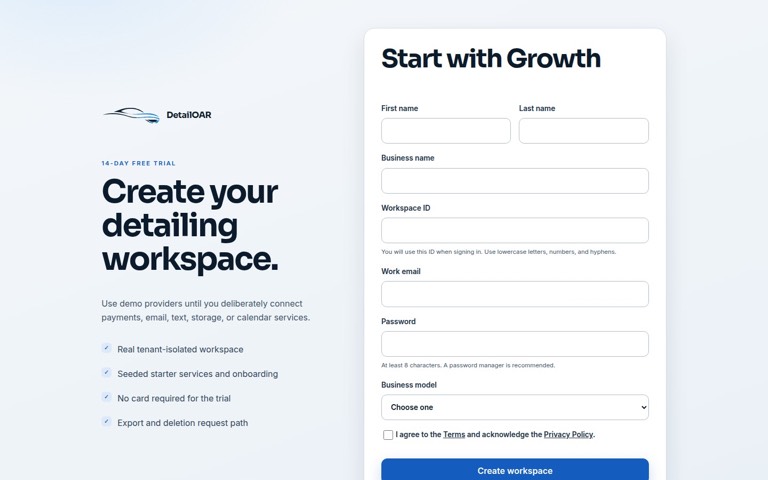 Software helpCreate Your Account and Business WorkspaceSpin up a tenant-isolated workspace, pick the right plan and business model, sign in, and confirm the owner session before any customer data goes in.
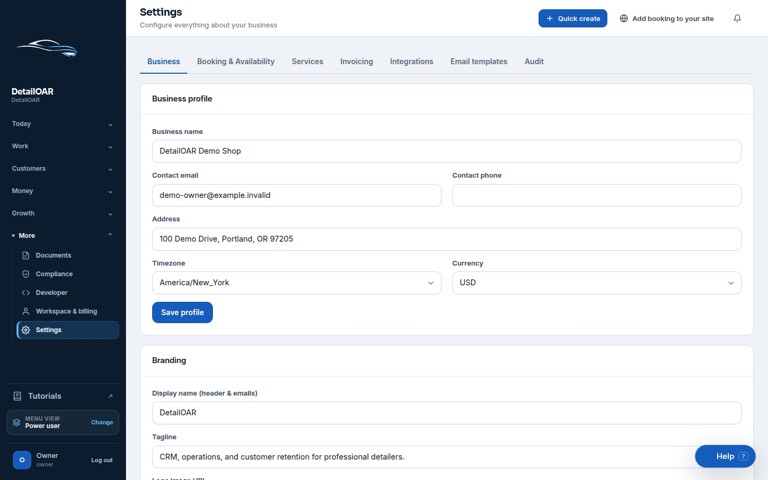 Software helpAdd Your Logo, Contact Details, Hours, and Service AreaFill in the public business profile and branding, then set weekly availability, exceptions, arrival rules, and your mobile service boundaries.
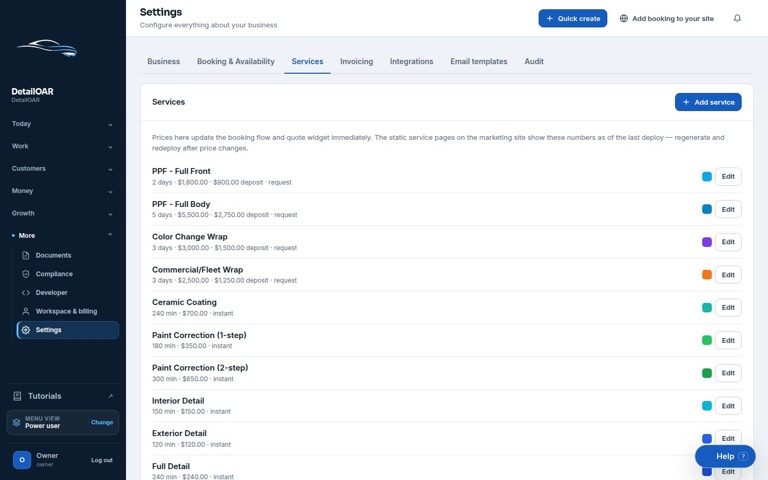 Software helpCreate Services, Packages, Add-Ons, and Vehicle-Size PricingBuild out sellable services with durations, booking behavior, deposits, size prices, invoice presets, and package/add-on conventions everyone can follow.