
DetailOAR Field Manual · Online booking
Set Up Online Booking, Availability, Travel Time, and Service Areas
Put a tested booking flow live, with service modes, capacity, multi-day bays, lead time, travel buffers, blackouts, and confirmation behavior you trust.
Save or use this guide
 View full size
Contents
Start
Know the outcome.
What you will accomplish
You’ll make only your predictable services instantly bookable, protect staff, bay, and travel capacity, and walk the whole customer path from vehicle selection to confirmation or request receipt.
Steps
Do the work in order.
-
Step 1 Choose booking modes
Open Settings, then Booking.
Set the Default booking mode. Instant confirms a valid slot on the spot; Request collects preferred times for staff to review.
Open Services and override the default only where it earns its keep. Use Request for condition-dependent, quote-only, or complicated multi-day work.
Only choose Make all services use this default if you truly want every service-level override removed.
-
Step 2 Set lead time and booking window
Enter the minimum Lead time hours you need to prep, confirm the location, and dodge same-minute bookings.
Set the future Booking window. Very long windows make schedule promises the business may not be ready to keep.
Set Request slot count so customers can offer useful alternatives without drowning the queue.
Save booking settings, then note the exact earliest and latest bookable dates you expect, for testing.
-
Step 3 Protect shop and mobile capacity
In Availability, add weekly windows and set concurrent capacity from your tightest resource.
For multi-day services, create and maintain bays or resources. The scheduled span has to reserve the full service duration.
For mobile work, add a travel buffer that covers drive, parking, unload, setup, and pack-down.
Add blackouts and one-day overrides. Never use a blackout to bury a conflict that should be assigned or rescheduled properly.
-
Step 4 Test as a customer
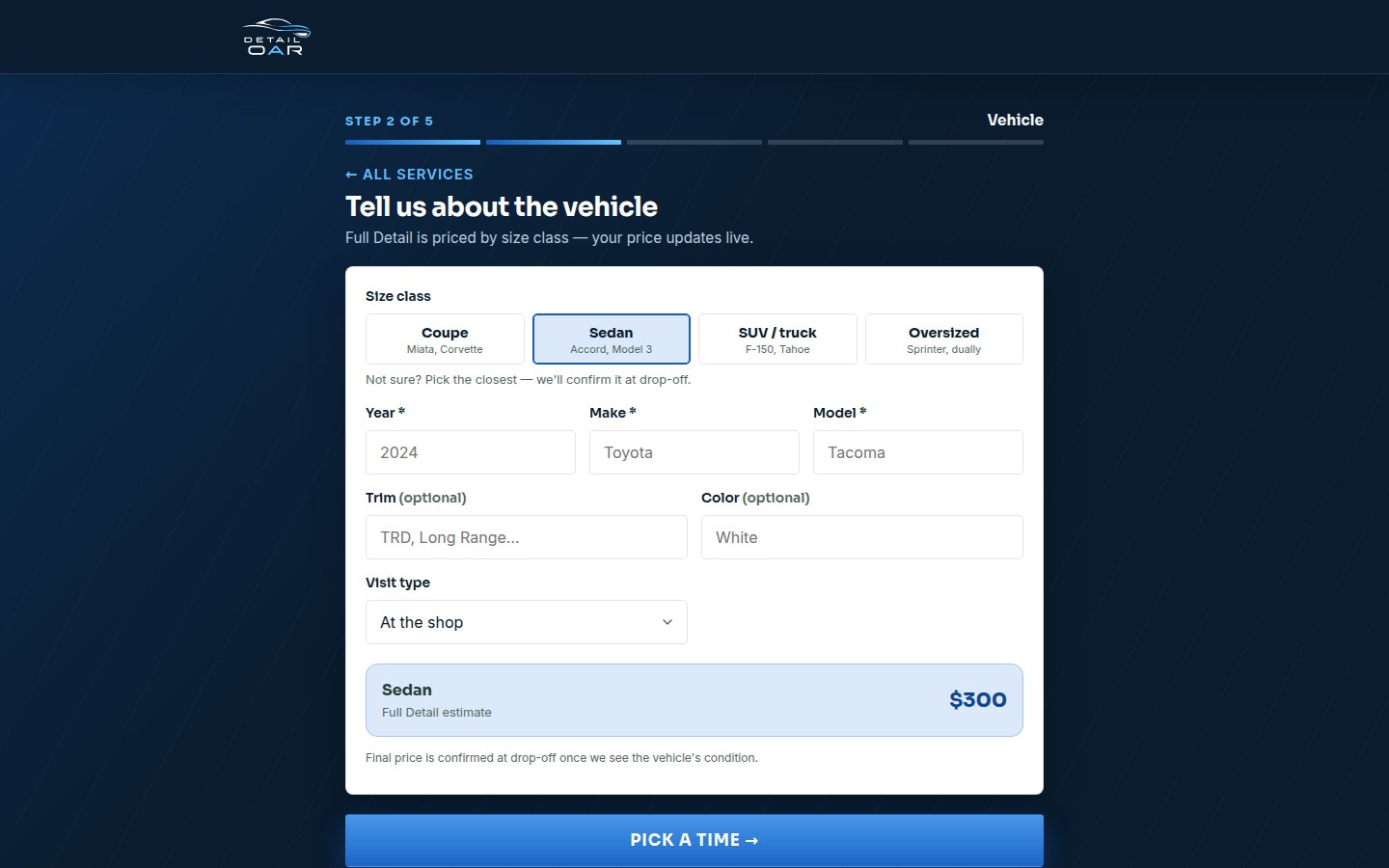
Open the public booking page in a private window.
 View full size
Pick an instant service and enter a demo vehicle in each size class. Watch that price and duration update correctly.
Pick a valid date and time, fill the form with made-up demo data, and confirm the success screen includes a manage link and calendar action.
Open the manage link. Test one allowed reschedule/cancellation and one blocked late cancellation.
Repeat with a request-mode service. Select the required number of preferred times and confirm it lands in Requests, not Scheduled.
Try a blackout, a full-capacity slot, an out-of-area address, and a conflicting multi-day bay. Each one should fail with a specific next step.
Reference
Use the detail when you need it.
What good looks like
- Only services with predictable price and duration confirm instantly.
- Full slots and bay spans can’t double-book.
- Request customers know staff still have to confirm.
- Mobile travel time shows up in the schedule.
- Confirmation and manage links work without admin access.
Troubleshooting
- No slots: work through service active state, duration, hours, lead time, booking window, capacity, blackouts, and existing jobs — in that order.
- Wrong day near daylight saving time: check the workspace time zone and retest the exact transition week.
- Request became scheduled: look at the service-level Booking mode override.
- Bay conflict slipped through: confirm the service Duration days and assigned bay were saved before scheduling.
Finish
Check the result and close the loop.
Final checklist
- Instant and request flows tested.
- Every size price tested.
- Lead time and booking window verified.
- Travel/bay capacity protected.
- Blackout and override tested.
- Manage, reschedule, and cancel links tested.
More
Continue only where it helps.
Prerequisites
Add Your Logo, Contact Details, Hours, and Service Area12 min readCreate Services, Packages, Add-Ons, and Vehicle-Size Pricing12 min readLearning paths with this guide
Set Up DetailOAR8 guidesFrequently asked questions
What’s the difference between Instant and Request?
Instant locks in a currently valid slot; Request records preferred options for staff to confirm later.
Should mobile travel be part of service duration?
Use the dedicated travel buffer when it’s available, so production duration and travel stay easy to read.
Can a quick detail share a day with a multi-day correction-and-coating job?
Yes — as long as staff, time-slot capacity, and bay/resource constraints all allow it.
Sources and review
Reviewed by DetailOAR Product Team on July 15, 2026. Verify current labels, interfaces, prices, and local requirements before acting.
Related field guides
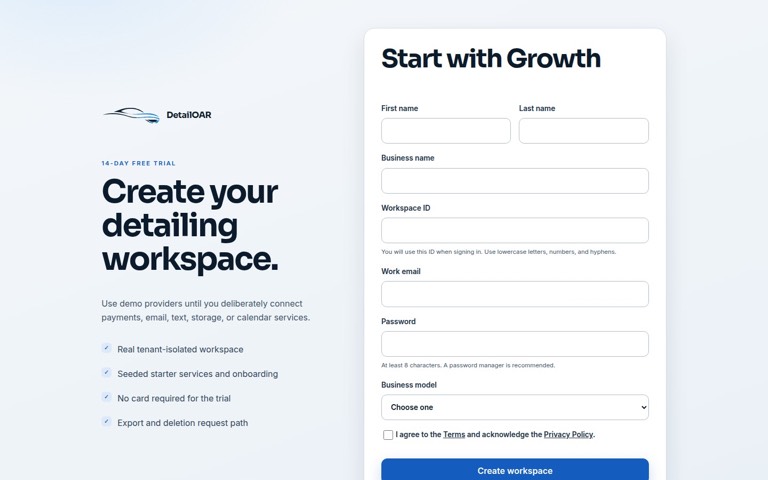 Software helpCreate Your Account and Business WorkspaceSpin up a tenant-isolated workspace, pick the right plan and business model, sign in, and confirm the owner session before any customer data goes in.
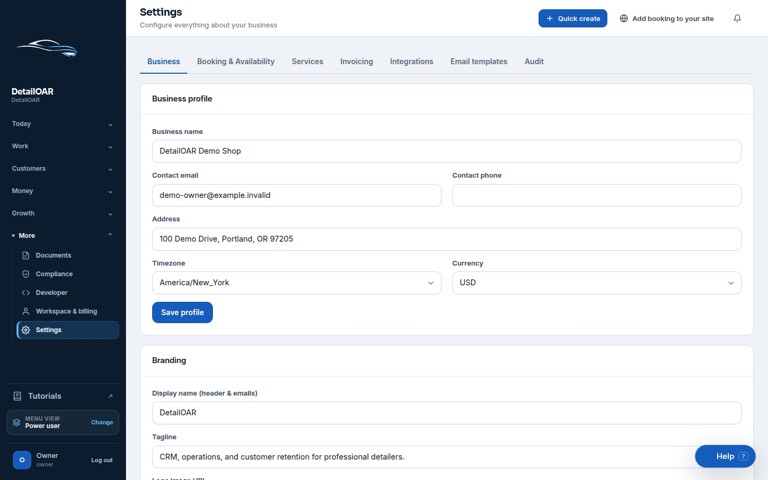 Software helpAdd Your Logo, Contact Details, Hours, and Service AreaFill in the public business profile and branding, then set weekly availability, exceptions, arrival rules, and your mobile service boundaries.
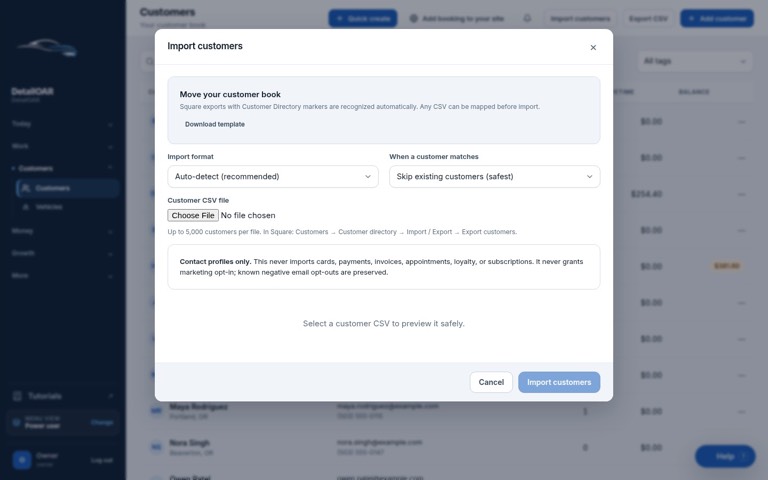 Software helpImport Existing Customers and Vehicle RecordsPrep, preview, dedupe, import, verify, and export customer and vehicle data — without any of it landing in the wrong workspace.