
DetailOAR Field Manual · Messaging automation
Create Automated Text and Email Messages
Set up providers, consent, templates, quiet-hour rules, previews, test sends, logs, reminders, follow-ups, and opt-outs — without one accidental send.
Save or use this guide
 View full size
Contents
Start
Know the outcome.
Steps
Do the work in order.
-
Step 1 Choose and configure providers
Open Settings, Integrations.
Under Email, pick the supported platform provider or enter the approved SMTP/Mailgun configuration. Point From and Reply-to at monitored, authenticated domains.
Under SMS, choose Twilio or the supported adapter, and put credentials only in the dedicated protected fields.
Leave live delivery off while you build templates. In local/demo mode, sends should land in the console/database outbox instead of reaching real people.
Save, then check the interface shows configured status without revealing the secret.
-
Step 2 Edit templates safely
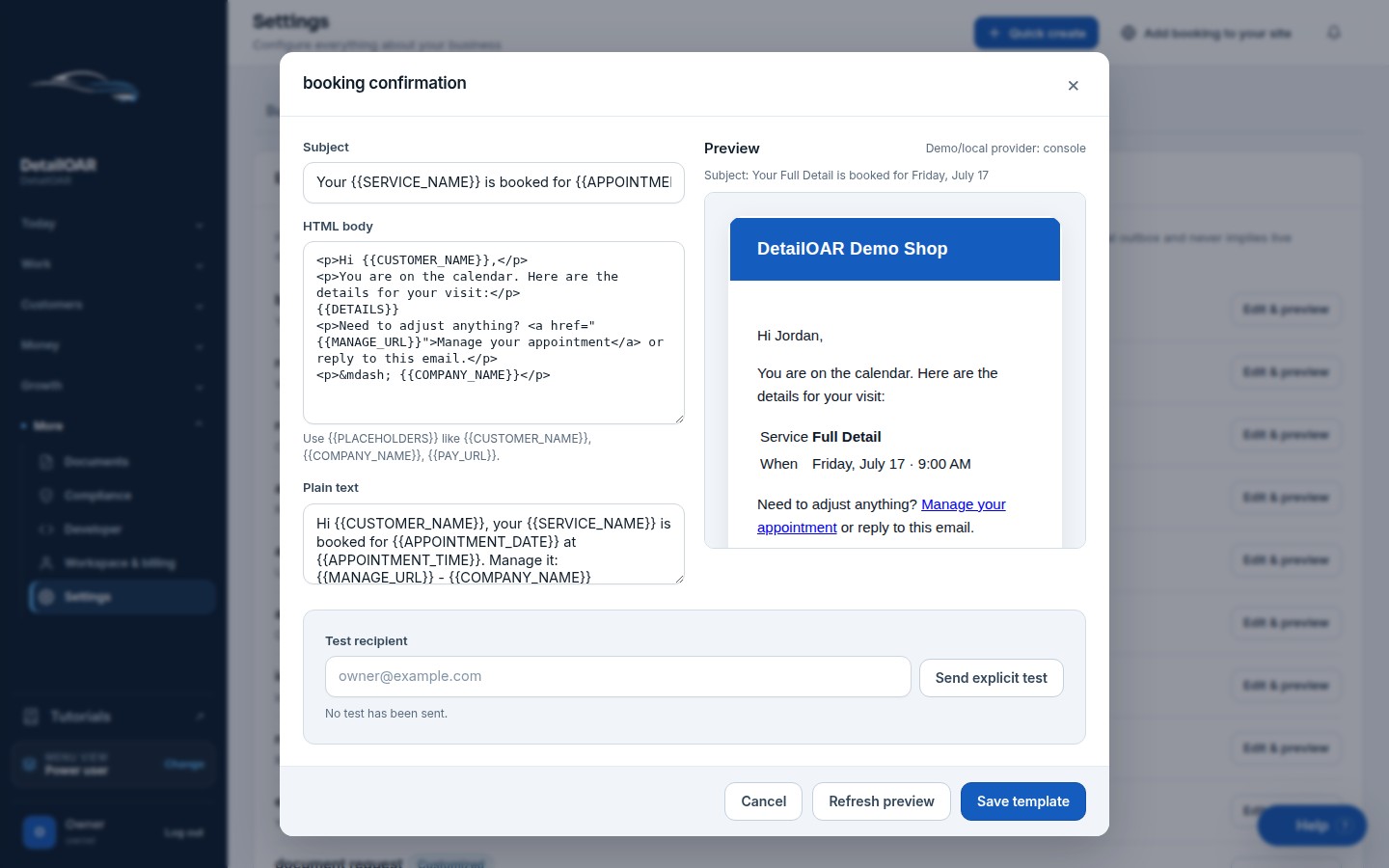
Open Email templates and choose Edit beside the exact event, such as Booking confirmation, Appointment reminder, Estimate, Review request, or Follow-up.
 View full size
Write a specific Subject, a short body, the accurate business identity, the reason you’re writing, and a real reply or manage path.
Stick to documented merge fields, and preview with an optional field missing so the sentence still reads naturally.
Choose Save template. Repeat for SMS with a tighter version that carries the required opt-out language.
Never put private notes, a full VIN, payment details, or inspection allegations in an automated message.
-
Step 3 Set timing and safeguards
Open Reminders and set the enabled timing relative to the appointment.
Look over quiet-hour configuration and the workspace time zone. A recipient may be somewhere else — apply the stricter appropriate rule.
Set estimate follow-up, review request, and maintenance rules with stop conditions, so acceptance, cancellation, opt-out, or a completed action halts nudges that no longer apply.
Choose Save reminders and Save owner alerts as needed. Owner alerts are operational — they’re not permission to market to the customer.
-
Step 4 Preview and test
Test with a non-real seeded customer, or a team-controlled address/number with documented permission.
Trigger one event at a time. In demo mode, check the outbox; in live test mode, use Preview or Test send if the interface offers it.
Check merge values, links, time zone, sender, reply path, mobile wrapping, and opt-out text.
Open Messages or the related record and confirm the delivery status and history.
Send STOP from the test phone, then confirm future nonessential sends show Suppressed and the consent record reads Opted out.
Reference
Use the detail when you need it.
Start with consent and local requirements
Email, SMS, automated marketing, quiet hours, identification, recordkeeping, and opt-out obligations all vary by country and jurisdiction. Check the current rules and provider policies with qualified counsel. The software can record consent and STOP events — it can’t create lawful consent after the fact.
What good looks like
- Nothing sends in production before explicit configuration.
- Every message says who sent it and why.
- Links and times come out right for the workspace.
- Consent and opt-out status block ineligible sends.
- Failures stay visible in the message or audit log.
Troubleshooting
- Email stays queued: check provider status, domain authentication, the recipient, and the outbox error.
- SMS suppressed: check consent, STOP history, quiet hour, and provider registration — never override a valid opt-out.
- Merge field comes out blank: use only supported fields and rewrite the sentence around it to tolerate optional data.
- Duplicate reminder: check the idempotency key/event history before retrying by hand.
Finish
Check the result and close the loop.
Final checklist
- Providers or demo mode clearly identified.
- From/reply identities monitored.
- Templates previewed with missing fields.
- Timing and stop conditions tested.
- Message log records status.
- STOP suppression verified.
More
Continue only where it helps.
Learning paths with this guide
Set Up DetailOAR8 guidesFrequently asked questions
Will local development send real messages?
It shouldn’t. The default console/outbox adapter records the message without any external delivery.
Can I text every imported customer?
No. Import doesn’t create consent. Verify lawful consent and purpose before sending.
What should happen after STOP?
The consent record flips to opted out, and future applicable messages get suppressed.
Sources and review
Reviewed by DetailOAR Product Team on July 15, 2026. Verify current labels, interfaces, prices, and local requirements before acting.
Related field guides
 Software helpCreate Your Account and Business WorkspaceSpin up a tenant-isolated workspace, pick the right plan and business model, sign in, and confirm the owner session before any customer data goes in.
 Software helpAdd Your Logo, Contact Details, Hours, and Service AreaFill in the public business profile and branding, then set weekly availability, exceptions, arrival rules, and your mobile service boundaries.
 Software helpImport Existing Customers and Vehicle RecordsPrep, preview, dedupe, import, verify, and export customer and vehicle data — without any of it landing in the wrong workspace.